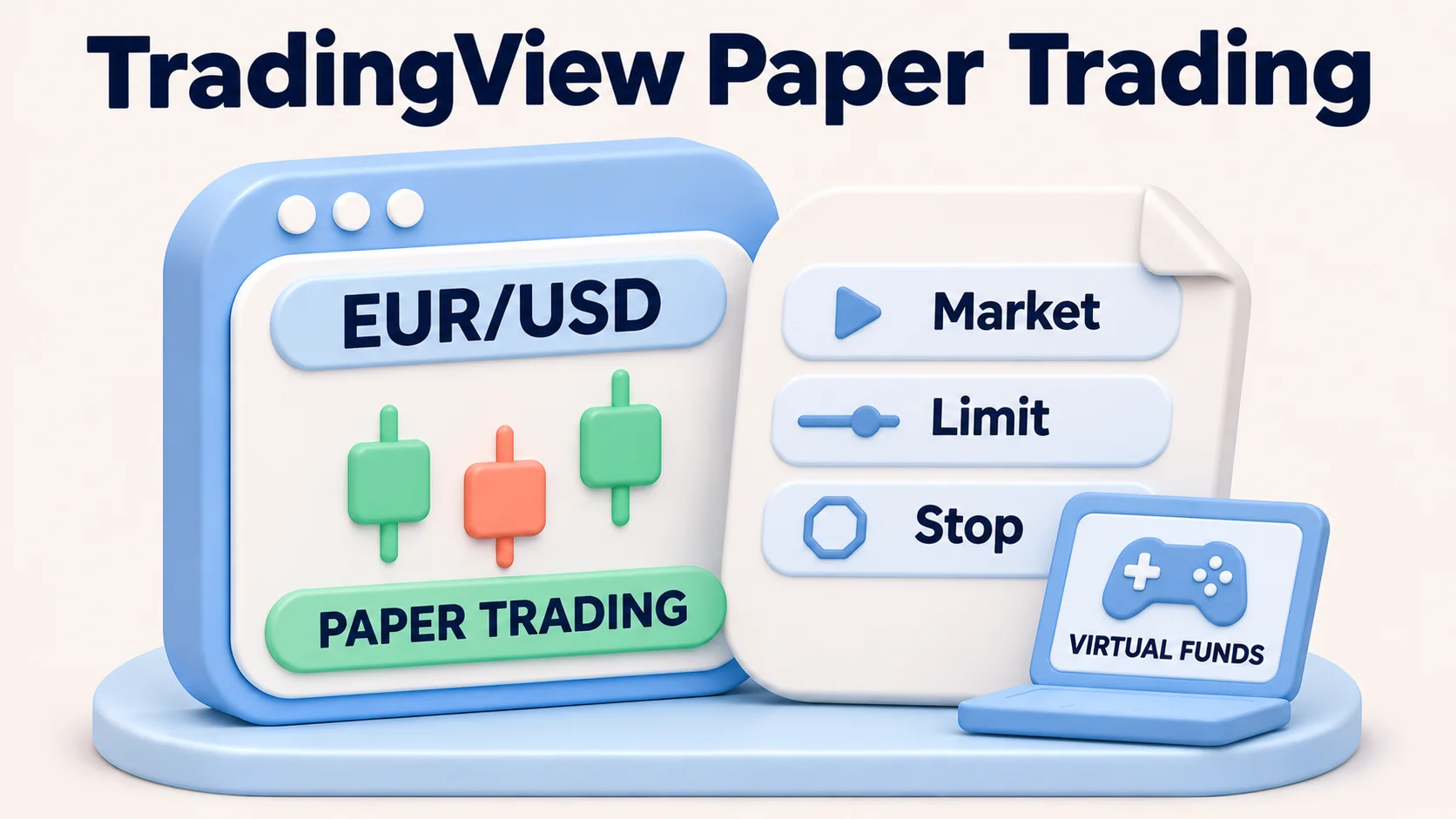
How do you paper trade on TradingView? Open TradingView Supercharts, choose Trade, select Paper Trading and click Connect. You can then place practice orders with virtual funds, track positions and adjust account settings. You do not need to fund a forex broker account to use TradingView's own simulator. The trade is simulated: a profitable paper position is not evidence that a live broker would have filled the same order at the same price.
This walkthrough is for a US reader learning TradingView's built-in multiasset simulator. It covers a simple forex trade, the settings that change your results and the limitations worth understanding before you use a broker demo or place an order with real money. For a comparison of actual US retail forex broker demos, see our US demo-account guide; that is a different choice from using TradingView's own virtual account.
Risk warning: Paper Trading uses virtual funds, but leveraged retail forex transactions with a real broker can result in rapid and substantial losses. Stops may execute at a different price in volatile conditions; platform access, spreads, margin rules and fees depend on the specific broker and account. Do not treat a practice return, simulated margin requirement or TradingView chart quote as a prediction of live trading performance.
TradingView Paper Trading versus a broker demo account
TradingView is a charting and trading interface. Its Paper Trading connection is a simulator run within that interface, not a live account at the financial institution named in a chart symbol. Selecting an OANDA-sourced EUR/USD chart, for example, does not make your paper position an OANDA Corporation order. You are using that symbol's displayed market-data series within a separate simulated account.
| Practice route | Where orders go | What it teaches well | What it cannot establish |
|---|---|---|---|
| TradingView Paper Trading | TradingView's virtual account | Charts, order-entry workflow, simulated margin, sizing and journal discipline across supported asset classes | A specific US broker's actual execution, price feed, charges, permissions or platform support |
| US forex broker demo | The broker's demo environment | That broker's practice interface and available products, subject to its demo rules | Guaranteed live fills, unchanged trading costs or real-money psychology |
| TradingView connected to a live broker | The connected broker, for supported orders | Actual broker account access through an eligible TradingView integration | The assumption that all symbols, accounts and order types are supported |
TradingView also has Replay Trading for practice against historical chart movement. It is not the same mode as Paper Trading on current displayed prices. A historical replay, an ordinary paper position and an automated strategy report answer different questions; do not combine their results as though they were one verified execution record.
How to set up TradingView Paper Trading
1. Open a suitable chart and check the symbol
Sign in to TradingView and open Supercharts. Search for an instrument, such as EUR/USD, and check the symbol name, quote currency and data provider before using any prices. A chart from one provider is not a promise of the executable prices of another. Make sure the chosen symbol supports Paper Trading rather than assuming every index, synthetic symbol or chart formula is tradable.
2. Connect the built-in simulator, not a real broker
From Supercharts, select Trade in the upper-right area, then Paper Trading → Connect. TradingView's current setup documentation describes this route. Its help center also describes opening the Trading Panel beneath the chart and selecting Paper Trading there. The precise position or label of controls may change by device or interface version.
Check that the account shown in the trading area is Paper Trading before pressing Buy or Sell. TradingView also lists broker connections in the Trade menu. Connecting a real broker is a different workflow, and some connected broker accounts allow real-money orders.
3. Check virtual funds and account settings before the first order
Open the paper account's settings in the Account Manager. Record the virtual opening balance and account currency. TradingView documents USD as the default account currency, with other available currencies selectable when creating an account or resetting one. If your hypothetical starting bankroll would be $2,000, training with a much larger virtual balance may encourage position sizes you could not afford in a live account. Use an appropriately sized balance for the scenario you want to rehearse.
Also check leverage, simulated commission settings and whether your symbol is available with the data feed you are viewing. TradingView offers multiple paper accounts and configurable account settings. Creating separate accounts for different strategies can be more informative than mixing incompatible tests into one P&L history.
How to place and close a sample EUR/USD paper trade
The following is a worked illustration, not a trade placed or tested by FXRanking. The prices, balance and outcome are hypothetical. It shows how to use the ticket and interpret the resulting numbers, not where EUR/USD will trade.
- Choose EUR/USD. Confirm the instrument, feed and that Paper Trading is the connected account. Check whether prices are currently updating and whether the market is available.
- Open the order ticket. Select Buy (long) or Sell (short) on the chart, or open the ticket from the trading interface. Choose Market for this example and leave one-click trading off so a confirmation preview appears. TradingView also documents limit, stop and stop-limit order choices.
- Set the quantity. For illustration, enter a quantity representing 10,000 EUR of EUR/USD exposure if the ticket expresses quantity in EUR units. Check the ticket's actual unit convention: quantities for futures, stocks and other products are not interchangeable.
- Review the risk. Read the displayed estimated trade value, available margin, leverage setting and any stop-loss/take-profit parameters. A stop helps specify an exit plan but does not guarantee an exact fill in a live market.
- Submit the simulated order. Confirm only while Paper Trading is selected. The open position should be listed in Account Manager → Positions; pending orders appear separately under Orders. If a pending order has not filled, it is not an open position.
- Close and record the result. In Positions, choose Close and review the confirmation before closing the full position or a specified portion. Inspect the position history, commissions and resulting virtual equity, then note the trade's intended rule and the reason for exit.
A ten-pip example, with the spread included in the entry and exit quotes
Suppose a long simulated EUR/USD position of 10,000 EUR fills at an ask of 1.1000 USD per EUR and is later sold at a bid of 1.1010. That is a 0.0010 USD rise from the entry fill to the exit quote, or ten standard EUR/USD pips. The gross hypothetical P&L is (1.1010 − 1.1000) × 10,000 = +$10 before any separately configured commission or other charges. If the exit bid were 1.0990 instead, the corresponding gross result would be −$10. These are chosen arithmetic inputs, not historical market prices.
The difference between the entry ask and exit bid matters. Looking only at the chart's last-traded or midpoint price can overstate a trade's apparent return. TradingView's paper P&L explanation uses the buy-side/ask and sell-side/bid distinction. Different forex pairs, account currencies, contract sizes and products change the arithmetic; do not transfer this $1-per-pip illustration to all instruments.
Market, limit, stop and stop-limit orders are not interchangeable
| Order | What you specify | Main teaching point |
|---|---|---|
| Market | Direction and quantity | Prioritizes execution but price can differ from what you expected |
| Limit | Quantity and your limit price | Controls acceptable price but the order may remain unfilled |
| Stop | Quantity and a trigger price | Becomes a market order after the trigger; the fill price is not guaranteed |
| Stop-limit | Trigger and limit prices | Can limit the execution price, but may not fill after triggering |
TradingView's order instructions distinguish these types and explain that paper-ticket take-profit and stop-loss attachment depends on the entry order type. Check what the live broker, if any, supports separately.
Virtual balance, leverage, commissions and resets: the settings that matter
Make the virtual bankroll realistic
A large practice account can hide mistakes. Choose a balance that matches the scale of the account you would realistically consider, then track risk in both dollar terms and as a share of equity. For example, a $20 theoretical loss is 1% of a $2,000 practice account but just 0.02% of a $100,000 one. The order does not become safer simply because the simulator lets you fund it with unlimited virtual money.
Set leverage separately by asset class
TradingView documents paper leverage controls for individual asset classes, including forex, futures and stocks. The order ticket can show trade value and available margin; the Account Manager displays used margin. A 20:1 hypothetical setting means $20 in notional exposure for each $1 of initial margin under a simplified model, but it does not mean a US retail forex dealer will allow that ratio for every pair or account. Live margin is governed by the actual broker, product and applicable rules.
As an arithmetic illustration, a $11,000 notional position at 20:1 corresponds to $550 of initial margin before any extra buffers or product-specific rules. That figure is not a TradingView account-test result or a quote from a forex broker. More leverage changes the collateral needed and amplifies P&L relative to margin; it does not change the underlying pair's pip movement.
Model commissions rather than pretending every trade is free
TradingView's paper simulator can apply configurable simulated fees. It documents commission-per-contract for futures and options and fixed or percentage-based settings for other instruments; some commission options are initially inactive. Check the account's settings before measuring strategy returns. If a strategy produces a $10 theoretical gross gain but costs $6 in modeled entry/exit fees, the net would be $4 before any other differences. A realistic spread and commission schedule should be based on the broker and product you actually intend to compare, not on an invented universal forex fee.
Export before resetting an account
Resetting a TradingView paper account deletes its transaction history, active orders and open positions, according to TradingView's account-currency help. If you want a clean starting balance, preserve any records you need first. The Account Manager documentation describes export functionality, but check which data appear in the export in your current interface. Resetting is not an undo button for a losing strategy: track results across a meaningful sequence before drawing conclusions.
Is TradingView Paper Trading free, and what data or plan limits apply?
The built-in Paper Trading simulator is available without a broker deposit. TradingView says Paper Trading is available to its users, including those using its free charting route. This does not make every chart feature or exchange data feed free. Optional TradingView plans have separate charges, and some exchanges require additional real-time data subscriptions. The exact price, entitlement and data delay depend on the exchange, location, user classification and plan, so check the current TradingView plans and market-data coverage for the instruments you intend to simulate.
For US stocks and futures, especially, verify whether the displayed exchange feed is delayed, limited or subject to an exchange subscription. Forex symbols can come from different data providers and use different indicative quotes. A tick on a TradingView chart should not be treated as a guaranteed execution price at any particular retail forex broker. TradingView also warns that a live broker's order-panel quotes may come from the broker rather than from a TradingView market-data subscription.
Some synthetic, index or non-tradable symbols cannot be paper traded directly. If you receive a non-tradable-symbol message, inspect the instrument type and choose a supported symbol rather than inventing an equivalent trade. Market closures, session rules and corporate actions can also affect what a practice position illustrates.
Where the simulator differs from real forex execution
| Factor | What Paper Trading can show | Live-trading gap to check |
|---|---|---|
| Quotes and spread | Displayed feed and modeled buy/ask, sell/bid calculations | Broker-specific executable quote, spread widening and price source |
| Fills | Virtual order and position history | Depth, rejection, partial execution, latency, slippage and fast-market behavior |
| Costs | Chosen simulated commission assumptions | Actual spread, broker fees, overnight financing, conversion charges and product terms |
| Margin | Configurable simulated leverage and margin display | Applicable US account limits, live margin closeout and broker risk rules |
| Markets | Supported TradingView symbols across multiple asset classes | Products legally and operationally available through the exact US broker entity |
| Behavior | Practice with no personal financial exposure | Real losses, time pressure, emotional decisions and funding constraints |
The most useful purpose of paper trading is process rehearsal: selecting a symbol correctly, sizing orders, following a rule, using the right order type and keeping a journal. It is less reliable as a forecast of profit or a test of a broker's execution quality. A platform's description of a simulator as realistic should not be interpreted as a measurement of real fill slippage or a guarantee of live results.
How to get more useful evidence from a paper-trading journal
Record each setup before entry: the symbol and data provider, date and trading session, planned entry, stop, target, quantity, modeled costs and reason for taking the trade. After exit, record the simulated fill, the actual risk in the virtual account, whether your rules were followed and what changed. Include unsuccessful and unfilled orders; hiding them gives a distorted result.
Run a consistent sequence rather than repeatedly resetting until the balance increases. Review average win and loss, the largest drawdown, cost sensitivity and whether results change when fees or spread assumptions become less favorable. If you later compare a broker demo, use the same strategy rules but report the two environments separately.
For US readers, the relevant next step is usually to compare a US broker demo against the product, spread model and platform needed for an eventual account. Our OANDA review discusses US TradingView-related features with their own account scope. The TradingView broker comparison is UK-focused; its listed providers and products should not be read as an approved US forex shortlist. Similarly, the Spreadex demo guide explains TradingView's independent simulator in a UK broker context, not US Spreadex access.
Bottom line: TradingView Paper Trading is useful for learning the chart-and-order workflow and developing consistency without staking funds. Use a deliberately realistic balance, understand spread-side pricing and document your assumptions. Do not use simulated equity growth as proof that a broker will fill, finance or protect a real position in the same way.
FAQs
Does TradingView have free paper trading?
TradingView offers its built-in Paper Trading simulator without a broker deposit. Paid charting plans and some exchange market-data subscriptions are separate; verify current entitlements for the symbols and tools you want.
How do I enable Paper Trading on TradingView?
Open Supercharts, select Trade, choose Paper Trading from the broker list and click Connect. TradingView also documents access through the Trading Panel under the chart. Confirm Paper Trading is the connected account before sending a simulated order.
Can I paper trade forex on TradingView without a broker?
You can use TradingView’s built-in simulator with supported forex symbols without opening a broker account. Virtual orders do not go to the provider shown beside the chart symbol, and they do not test a particular broker’s live execution.
How do I place and close a forex paper trade?
Choose a supported forex symbol, connect Paper Trading, open an order ticket, set direction, order type and quantity, review the order and confirm. Watch the result in Positions or Orders in the Account Manager. To exit an open position, use Close under Positions and confirm the requested quantity.
What is the difference between a market order and a limit order?
A market order seeks immediate execution at the available price, which may vary. A limit order specifies a price boundary and may never fill. A stop order converts to a market order when triggered, while stop-limit adds a limit-price constraint. Broker-specific live order features can differ.
Can I change the virtual balance or leverage?
TradingView provides account settings and multiple paper accounts, with leverage configurable by asset class. It also allows changing account currency through a new account or reset. Record your settings because fictional margin and a large virtual balance are not evidence of live borrowing limits.
What happens when I reset my TradingView paper account?
TradingView says resetting deletes transaction history, open positions and active orders. Export records you need before resetting, and use separate accounts where you want to compare strategies without erasing history.
Are simulated spreads, commissions and execution the same as my forex broker?
Paper Trading uses selected market data and simulation settings, including configured fees. A live broker can have different executable quotes, spreads, swaps, slippage, liquidity and margin rules. Compare the exact account and legal entity before drawing conclusions.
Can I use TradingView Paper Trading with delayed market data?
The availability and freshness of prices depend on the symbol and data entitlement. Some exchanges show delayed or limited data without a separate package. Review the data indicator and TradingView market-data coverage; a delayed chart is not a reliable substitute for a live executable quote.
Is Paper Trading the same as TradingView Bar Replay or Replay Trading?
No. Ordinary Paper Trading simulates orders using current displayed market data; Replay Trading is for practising against historical replay. Strategy reports and historical backtests are different tools. Keep their results separate when assessing a method.
Can I withdraw profits from TradingView Paper Trading?
Virtual balances and gains cannot be withdrawn. Competitions may offer separate prizes under their own rules, but that does not convert paper-account profits into cash or make the simulator a brokerage.
Does a profitable paper trading record mean I am ready for live forex?
A paper record can show whether you followed your process under its simulation assumptions. It does not test all live costs, execution, leverage restrictions or the effect of actual financial loss. Review the appropriate US broker terms and only consider risk you can afford to lose.

Nathan Wong
Nathan Wong is a Forex education contributor with 15 years of trading and market-analysis experience. He specializes in broker platforms, cryptocurrency, risk management, and trading psychology, creating practical content that helps readers make informed decisions and develop realistic expectations.